
Menus
Menus are the link lists in your header, footer, and sidebars. Change one and every page updates.
How menus work
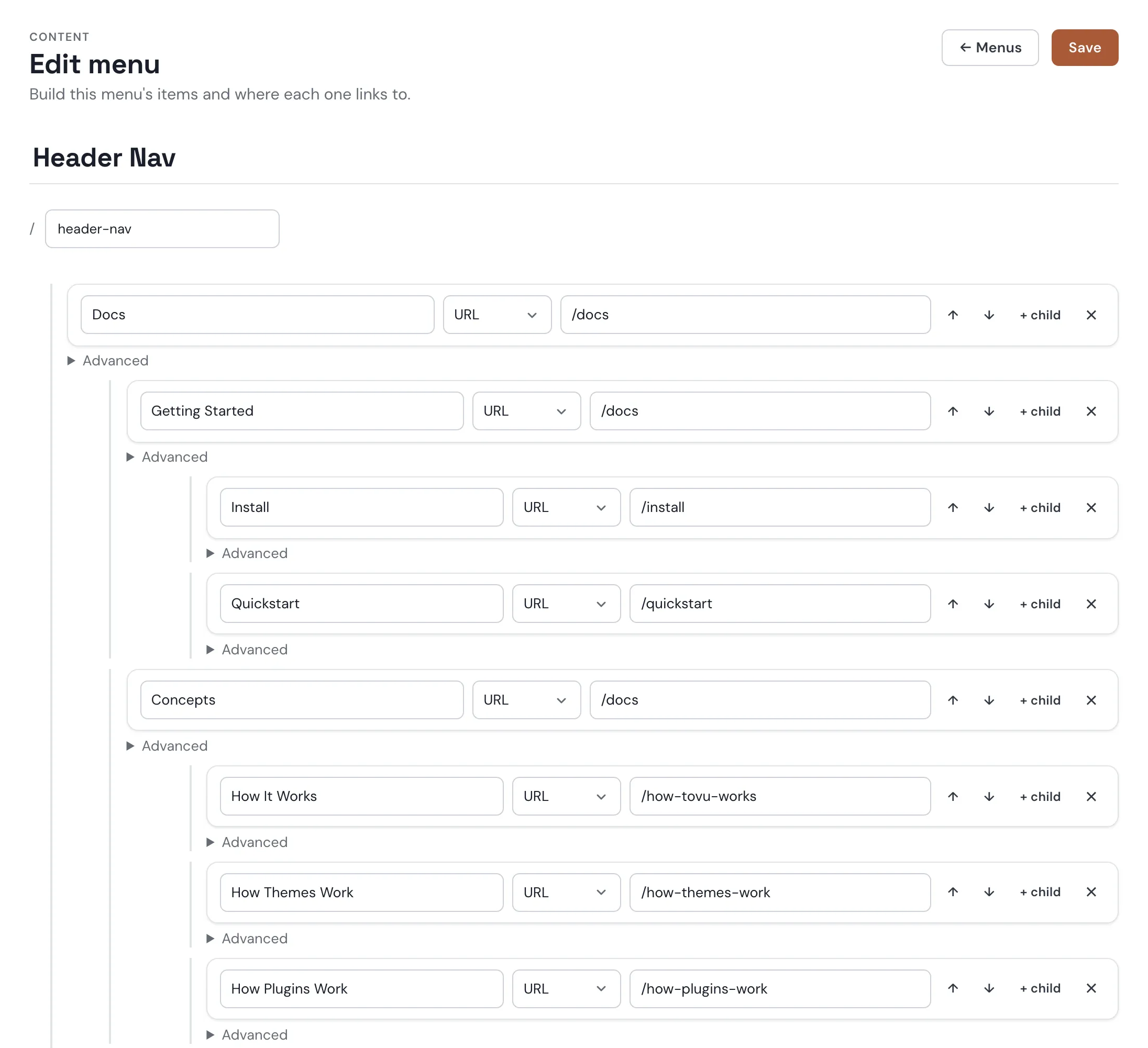
- Items — each menu is a list of items, and each item has a label and a link.
- Links — four link types: a raw URL, a route, an entry (a page or post, by ID), or a category or tag.
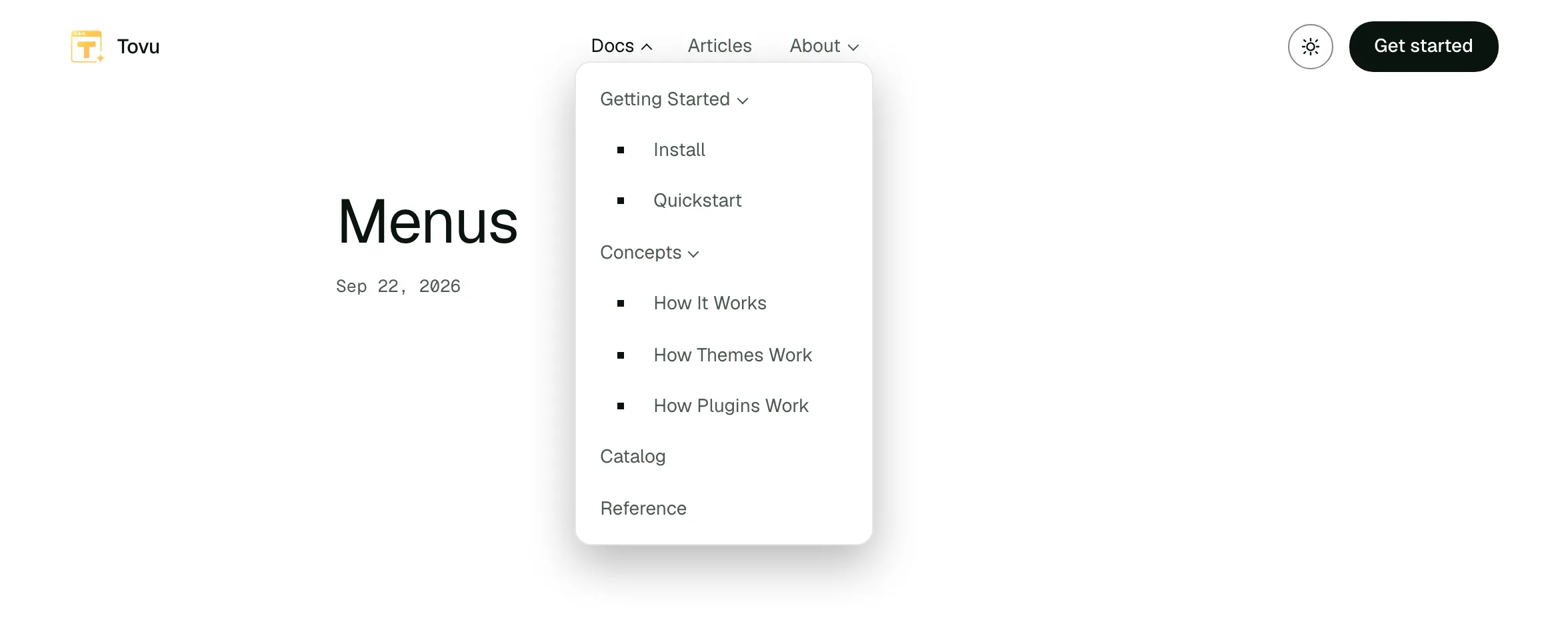
- Nesting — give an item children and it becomes a dropdown.
- Placement — the
basictheme puts Header Nav in the header and Footer Nav plus Footer Resources in the footer. Put any menu into a page or post as a Menu widget, or into a theme file with a menu embed, and style it however you like.
Building a menu
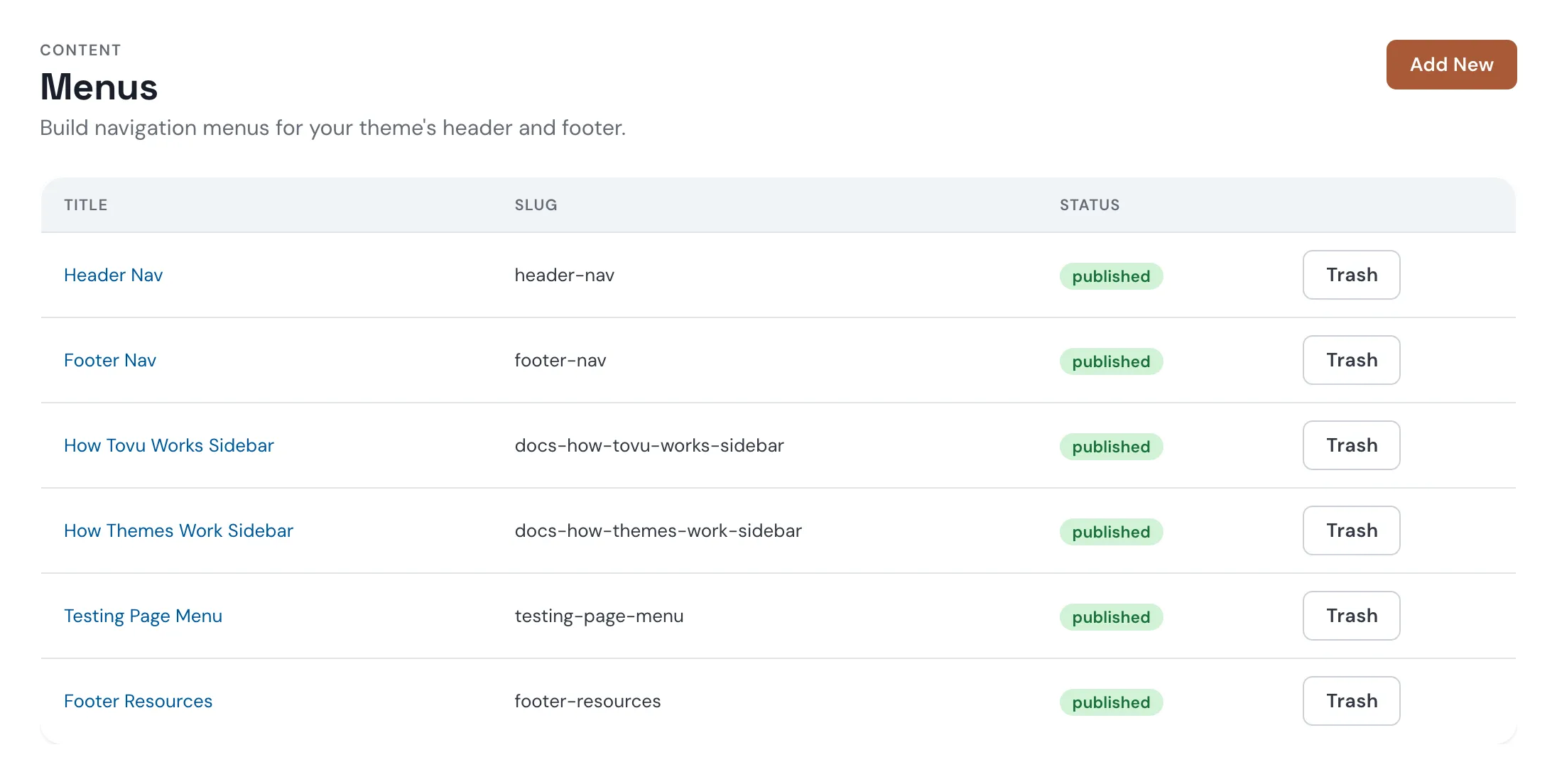
- Go to Content → Menus and click Add New.
- Name the menu and set its slug.
- Click + Add item, then pick a link type and set its target.
- Nest an item under another with + child.
- Reorder items with ↑ ↓.
- Click Save.
- Open Advanced on an item for a CSS class, icon, description, link rel, or open-in-new-tab.
Try it
This is a live menu, dropped into this page as a widget.
On the site
A page using the docs sidebar template shows the menu whose slug matches the page — for example, docs-how-tovu-works-sidebar.
Coming Soon: menus written in raw HTML — your own markup and styling, links wherever you want.